Overview
Otter Catering streamlines the catering process— from order placement to delivery, all within the Otter Dashboard.
With Otter Catering, you can:
- Create, edit/adjust, & manage catering orders
- Generate, edit/adjust, & send catering order invoices
- Accept deposits & payments directly
- Plan ahead by viewing catering orders from a calendar or list overview
- Send eater notifications in regards to their catering order(s) and invoices
- Configure catering settings per brand, location, or organization
The Catering Flow
-
Step 1
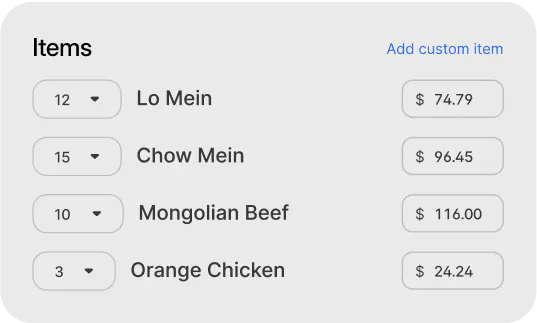
Guests browse the catering menu choose items and quantities, and see a clear price per attendee
-
Step 2
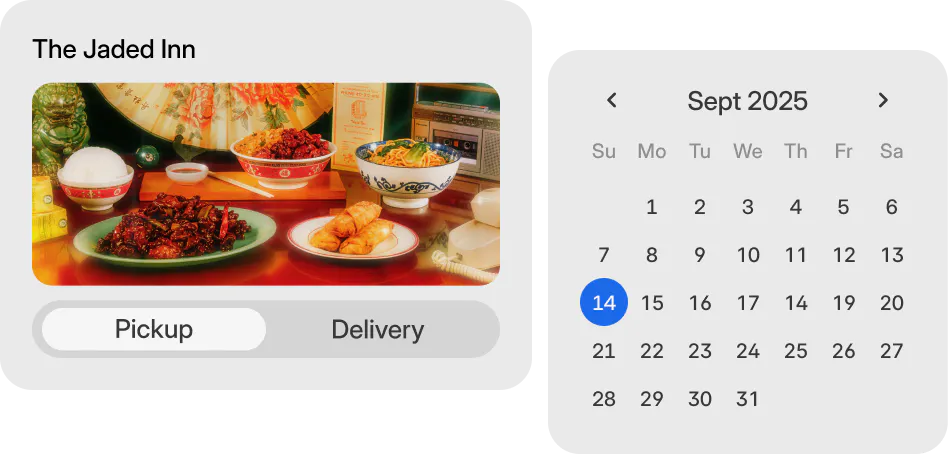
They select pickup or delivery and schedule the order up to 6 months in advance
-
Step 3
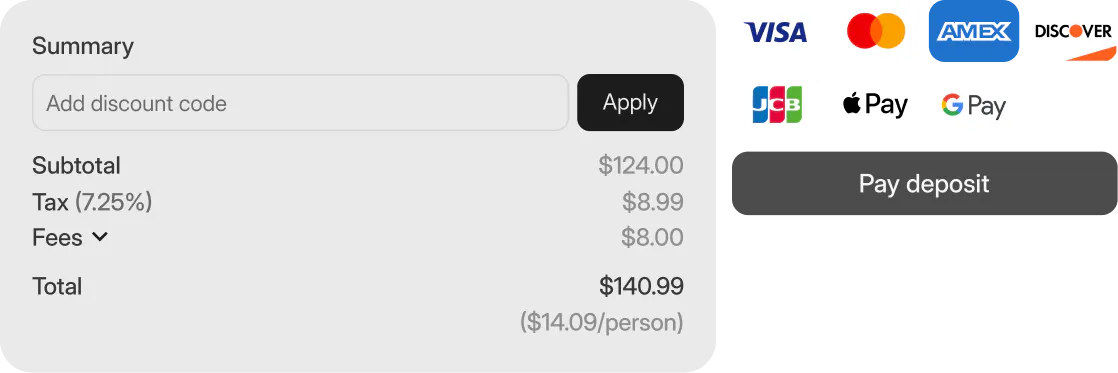
They pay the deposit online using Apple Pay, Google Pay, or any major credit card
-
Step 4
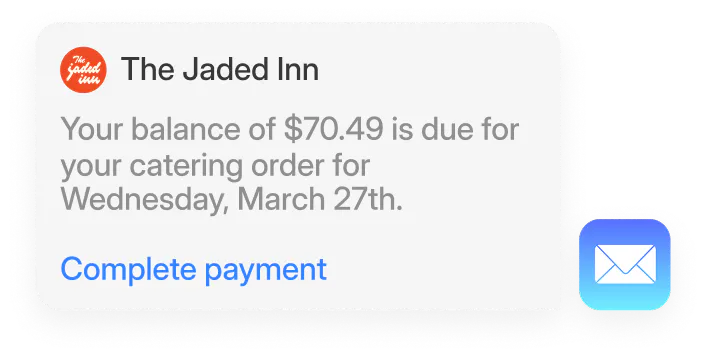
A few days before the event, guests receive an invoice and pay the remaining balance
-
Step 5
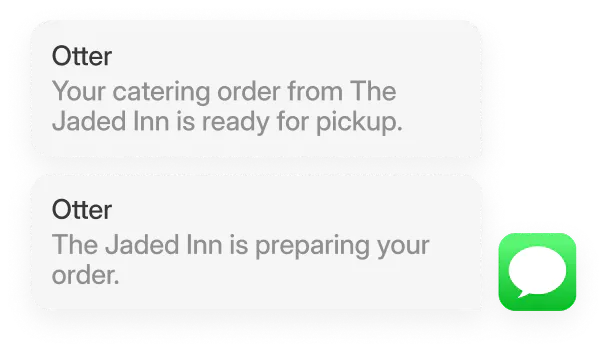
On the day of the event, they get real-time updates with pickup timing or delivery tracking
-
Step 6
They receive a fresh, on-time order and enjoy a smooth, stress-free experience
Catering Order in Web Order Manager (OM) Scheduled tab Printed Receipt -
All of your upcoming catering orders will drop directly into the Scheduled tab of your Order Manager (accessible on both the web order manager and your Otter tablet app).
Step Process Image 1 New Order Received: A new catering order arrives and waits safely in your Scheduled tab.
To keep your kitchen clutter-free, the ticket does not print immediately.
(For more information on how this tab works, check out our article on Scheduled Online Orders).
2 Smart Timing: It stays scheduled until it is time for your kitchen to start cooking.
The system calculates this automatically based on the scheduled pickup or delivery time, minus your custom prep time.
3 Activation & Automatic Printing: When it is time to fire the ticket, the order automatically moves over to your Active tab.
At this exact moment, you will get a "Scheduled order activated" notification, and the physical ticket will print automatically.
4 Hand-Off: Your team prepares the food, marks the order as ready, and hands it off to complete the order. Printing Tickets Early
Catering order tickets print only when the order is activated. To print a ticket early, manually activate the order from the Scheduled tab. Use this option carefully, as the order will remain in the Active tab until completed. -
After placing a scheduled order, eaters will receive an email and text confirmation/receipt. They will also receive a reminder notification 1 hour before their scheduled order pickup/delivery time— and can track their order through a provided link within these notifications.
Step Process Email Order Receipt Text Order Receipt Reminder Email Reminder Text
Catering Settings
You can configure the settings for catering from the Catering App in the Otter Dashboard.
You can adjust Catering settings from an organization, brand, or location/store level.
- Organization level: Applies to all brands and locations
- Brand level: Applies to all locations within that brand.
- Location/Store level: Applies to only that location within a brand.
Follow the steps below to edit Catering settings.
Step Process Image 1 From the Otter Dashboard, select Apps > Catering. 2 Click the Settings tab for Org-level settings.
Click the Brand or Locations tab for brand or location level settings.
Org Level Settings
Brand/Location Level Settings
3 If adjusting Brand or Location level settings, toggle Enable Overrides ON if edits differ from Org-level settings. 4 Edit/Adjust Pickup settings listed:
- General
- Payment
- Scheduling
- Ordering Restrictions
- Tips
- Fees
Learn more about Catering setting fields below.
5 Edit/Adjust Delivery settings listed:
- General
- Payment
- Scheduling
- Ordering Restrictions
- Tips
- Delivery Area
- Delivery Fees
Learn more about Catering setting fields below.
6 Click [Save] to confirm Catering settings. 7 Confirmation notification will show at the bottom right corner of the screen.
Catering Settings Fields
General:
Toggle to Enable or Disable for pickup or delivery (from corresponding settings tab).
When enabling delivery for catering, you are responsible for providing services — if working with a third party to provide delivery services please reach out to our team for integration with the platform.
Payment:
| Payment Settings | Insight |
|---|---|
| Payment Method | Check to accept payment methods Online or allow In-person payments for online catering orders. |
| Invoice Due Date | Enter the number of days before the order is scheduled for that the invoice needs to be paid. |
| Invoice Reminders | Enter the number of days before the order is scheduled to send a reminder about the order. |
| Require Deposit |
|
Scheduling:
| Scheduling Setting | Insight |
|---|---|
| Lead Time | Select from drop down the amount of time (in days or hours) that is needed to prepare a catering order. |
| Advance Ordering | Enter the number of days an eater can place an order in advance of event day. |
Ordering Restrictions:
| Order Restriction Setting | Insight |
|---|---|
| Basket Size Minimum | Enter the minimum dollar amount for basket size of catering order allowed. |
| Guest Count | Enter the range of guest count allowed for catering orders. |
Tips:
| Tip Setting | Insight |
|---|---|
| Tip Enablement | Toggle to enable or disable tips for catering orders. |
| Tip Amount | Enter the preset percentage for an eater to select for tip amount. |
| Allow Custom Tips | Toggle to enable or disable to allow eaters to enter a custom amount for tips. |
Fees (Pickup):
| Pickup Fees Setting | Insight |
|---|---|
| Service Fee | Toggle to enable or disable to apply a service fee for pickup catering orders. |
| Fee Amount | Enter percentage to set for pickup catering service fees. |
Delivery Area (Delivery):
| Step | Image |
|---|---|
| Limit Type |
Select Type for how you’d like the delivery area to be set:
Straight Line Distance: Measures distance between two points in a straight line on a flat map and doesn’t consider land surfaces or obstacles. |
| Distance | Enter a mile or kilometer amount of allowance for delivery range. |
| Preferred Units | Select to calculate distance in Miles or Kilometers. |
Delivery Fees (Delivery):
| Step | Image |
|---|---|
| Charge Delivery Fee | Toggle to enable or disable setting a delivery fee for catering orders. |
| Different Fee Tiers |
Select the distance range (in miles or kilometers) for a fee and the corresponding dollar amount fee. You can add multiple delivery fees for different distances. |
| Service Fee |
Toggle to enable or disable a service fee applied to all catering orders. Enter a percentage fee amount. |
Creating a Catering Order & Invoice
Follow the steps below to take a catering order and create an invoice.
Step Process Image 1 From the Catering App, click [Create Invoice]. 2 Select the location for catering order.
Click [Continue].
3 You will be redirected to the Invoice Creation Mode online ordering website.
If for delivery, a pop-up window will display for you to input:
- Delivery Date
- Time
- Headcount
If for pickup, click [Switch to pickup] to fill out corresponding information.
4 Select menu items needed and add them to the cart. 5 Once all items have been added, click [Cart].
To edit any time or headcount information, click the menu at the top of the page.
6 Confirm order in cart.
Click [Preview invoice].
7 Enter Customer information:
- Name
- Phone number
8 Enter payment information and/or discount code (if applicable).
Click [Send invoice] to confirm catering order and send invoice to the eater.
9 Invoice will display with order details & invoice status.
Eaters can place a scheduled online order, however, they cannot create a catering invoice.
If eaters place a large scheduled online order, they will need to pay the full amount of the order at checkout and will receive confirmation/receipt, but not a formal invoice with headcount, deposit option, or breakdown of price per person.
Viewing Invoices
You can view Catering invoices in a calendar view or a list view from the Catering App in the Otter Dashboard.
From each view, you can:
- View invoice details
- See order, invoice, & deposit status
- Filter by brand, location, & invoice status
- Resend invoice
- Void invoice
- Issue refund (if fully paid)
See each view below.
-
Calendar Invoice View:
-
List Invoice View:
Invoice Actions
-
To resend a Catering invoice:
- Select the invoice listed
- Click [Resend invoice]
-
To void a Catering invoice:
- Select the invoice listed
- Click the 3 dots in the top right corner
- Select Void Invoice
-
To refund a Catering invoice:
- Select invoice listed
- Scroll to the bottom of the invoice details
- Click [Issue a refund]
If a Catering order invoice isn’t fully paid, a refund cannot be issued— the invoice can only be voided.
If the option to issue a refund is grayed out, that means the invoice isn’t eligible to issue a refund due to not being fully paid.
Editing a Catering Invoice
After you open an existing unpaid or partially paid catering invoice in the Otter Dashboard, you are able to edit some of the fields on the invoice. The following invoice fields can be edited:
- Items (add or remove)
- Quantity (increase or decrease)
- Pricing
- Headcount
Steps to Edit a Catering Invoice
| Step | Process | Image |
|---|---|---|
| 1 |
Go to the Otter Dashboard & click on the Catering app. Find the catering order / invoice that needs to be updated. |
|
| 2 | Select Edit order, which opens up “Invoice Edit Mode“. | |
| 3 | Update the desired catering order fields. | |
| 4 | Select Send Updated invoice, which will automatically send a notification to the eater. | |
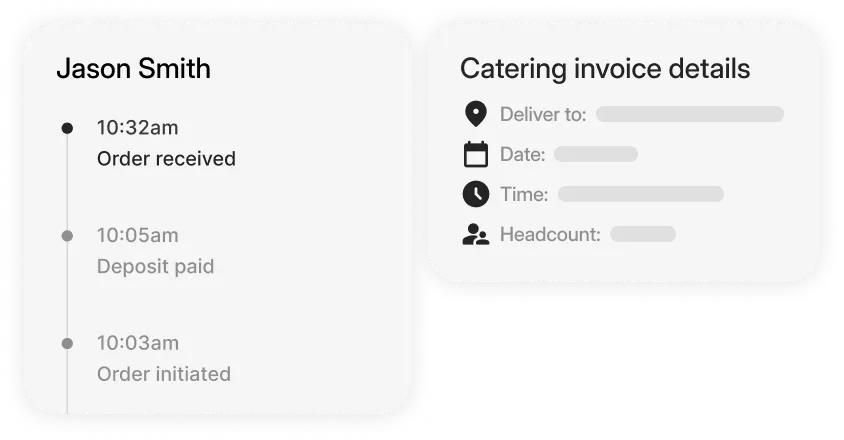
| 5 | You can look at the Timeline in the order details within the Catering app to see updated invoices. |
Eater Invoice Notifications
Once a Catering invoice is created, the eater will receive an email and/or SMS confirmation (if applicable). From those notifications, they can:
- View the invoice
- See Catering order details
- Review & pay their deposit/invoice
Check out the invoice experience from the eater’s perspective:
-
Email Catering Confirmation
-
SMS Catering Confirmation
-
Invoice Review & Pay Page
FAQs
- No— eaters will not be able to redeem points towards their Catering orders.
- No— Eaters cannot create a Catering invoice, however, they can (if enabled) place an order on your Direct Orders website for a scheduled date/time.
- No— Gift cards are not available as a payment option for Catering Invoice payment.
Related to
Updated
Comments
0 comments
Article is closed for comments.